Showing posts with label Google Reader. Show all posts

Thursday, 11 July 2013

Top Alternatives to Google Reader Plus Other Discontinued Google Products

RIP Google Reader

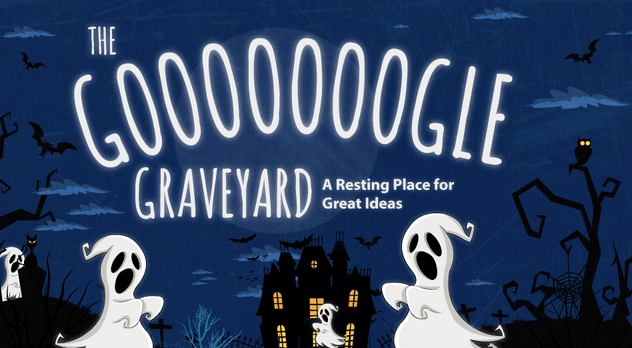
On July 1, Google Reader will join a long list of discontinued Google products and services, a list that includes social media services like Google Buzz and Google Wave, search tools like Sidewiki and Aardvark, and various other random ventures, like photo editor Picnik and Knol, a Wikipedia-style knowledge base.
Google Reader may not have experienced much growth over the years, but it was a popular product with a loyal fan base. Many of my colleagues in search marketing used the RSS reader to follow their favorite blogs and sites.
If you haven’t yet exported your Google Reader data using Google Takeout and found a replacement, now is the time! You won’t be able to access your feeds after this weekend, so stop what you’re doing and export your Reader data now.
As for alternative RSS readers, here are your best options once Google Reader shuts down for good.

Free Alternatives to Google Reader

Feedly – Feedly is probably the most popular alternative to Google Reader. They make it extremely easy to migrate your feeds over, with a one-click import, and the design is actually cleaner and more attractive than Google Reader.
Curata Reader – The cleanest reader, specifically designed for business users. Exceptional article searching and filtering capabilities.
AOL Reader – I personally wouldn’t be caught dead using an AOL product but for those of you who aren’t picky, I’ve heard their reader (still in beta) is simple and fast.
The Old Reader – The Old Reader was built to replicate, well, the old Reader, back when Google Reader had social sharing functions. If those features (like sharing and commenting) were important to you, you might like this replacement, though you’d have to convince all your old friends to use it too to get the same value.
Digg Reader – Digg has been developing an RSS reader that is so far invite-only, but should be more widely available soon. An Android app is on the way. You can read about the features here.

Paid Alternatives to Google Reader

Newsblur – At $24 a year, you may feel more comfortable paying for a reader that is less likely to shut down unexpectedly. It’s been around since 2009.
Feedbin – Feedbin also costs $2 a month. I haven’t heard from anyone who thinks it’s worth the cost, frankly.
Feed Wrangler – Another basic RSS reader, for $19 a year.
If you’re serious about RSS it’s worth trying out multiple products to see which is the best fit. All of these options offer similar functionality, so it’s mostly a matter of finding the reader whose aesthetic you like best.
Web: www.sunmoonsolutions.in | Email: sunmoonsolutions@gmail.com | Skype: sunmoonsolutions 

Wednesday, 19 June 2013

Google Reader Is Almost Gone, But Do You Really NEED An RSS Reader Replacement?

It’s been 3 months since Google announced that Reader was being put out to pasture, and now July 1st is looming just around the corner. Have you found your replacement yet?

Which RSS Reader Should You Use?

At the moment, Feedly is at the head of the pack. It was one of my favorite choices at the very beginning of my hunt for a proper replacement, and it seems that others have agreed. Across the board, Feedly is the most highly-recommended replacement in the RSS market.


This is possible because it’s the most easily-integrated RSS platform. You can export all of your old feeds from Reader for a seamless transition, and it has a plug-in for every browser except Internet Explorer.
After two months of using it, the only problem with Feedly that I’ve come across is that it can sometimes be clunky—especially on a mobile device. When I’m looking to consume a large amount of data, I don’t need an interface with any extra frills. This is something that can be seen with most other reader options.

For the sole purpose of information intake, Google Reader remains king. It was simple and clean, and though have some have cited this as a lack of innovation on Reader’s part, ultimately Reader was perfect for digesting large amounts of reading material both during downtime and on-the-go.

In fact, despite it’s impending retirement, none of the up-and-coming readers promise as much in terms of pure data consumption as Reader, which poses a big question: Why did Google get rid of Reader in the first place?

Google’s major claim has been that the resources simply weren’t there to maintain Reader, but I have a theory that Reader’s shutdown is part of a much larger play on Google’s part.

Are RSS Readers A Platform of the Past?

While resources might have been slim for Reader, the fact that it was such a popular platform makes one wonder why Google didn’t push to make it more successful. Instead, they let Google Reader die.
Why?

Could it be that Google is transitioning away from the RSS Reader format entirely? They’re switching over to Google Plus, and they want you to come with them.

Consuming social media as part of an RSS feed is not exactly new—that’s exactly what Digg is doing when it launches its own reader, the same day Reader shuts down. But to do away with readers entirely, relying solely on a social platform? When we’re looking at large-scale data consumption, is it a viable transition?

The answer is yes—if Google can pull it off. With the latest Google Plus redesign, this social platform is now much more social, making it easier to stream and share information. It could be possible to amass “feeds” of information… if you’re following the right people. And in order to make sure the right people are on Plus, Google got rid of it’s eminently popular Reader.

It could also be said that Google is simply following on the heels of a major trend in how we access information. RSS readers were designed for people to sit down and browse their collected feeds. But with the increasing number of those who use smartphones and tablets as their primary internet checkpoint, it’s more common to see people who are accessing information all day long, checking the latest news on a constant basis—which makes an integrated social media/reader platform much more probable option.

Google’s greatest currency is data, and to have both social and news in one place would elevate Google Plus’ usability and appeal, a fact I’m sure Google is extremely aware of.

What does this mean for you? Should you drop all your feeds and stick to social media? Not yet, but considering that Google is pushing Plus in every way that it can, it can only hurt you to ignore the signs.
In the meantime, Feedly will have to do. Flipboard is another great platform for reading RSS feeds on your mobile device, turning your feeds and links from your social media sites into a personalized, digital magazine. In terms of innovation, Flipboard doesn’t feel like an RSS reader—which might be the point.


Regardless of where you’re going to end up taking your feeds, you should make sure to download and export your RSS feeds from Reader before July 1st so you don’t lose any of your subscriptions!


My plan?  Use Feedly for when I just want to read news.  Create circles on Google Plus according to my Reader folders.  Start circling/following everyone on Plus that I normally follow.  There might be a few of my favorite sites that aren’t sharing on Plus—hopefully everyone will catch on soon enough.    I’m going to enjoy Reader to its very last day, and then you will seem me on Google Plus—Finally.  I have no doubt that Plus is the future of Google. It’s time to hop on board.

Email : naturalseosolution@gmail.com | Mo : 8763723377 | Skype : sunmoon.mohanty

Wednesday, 15 May 2013

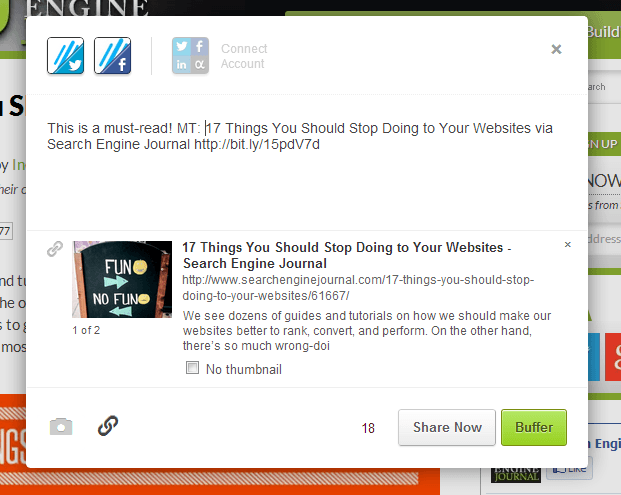
11 Unique Ways to Boost Your Social Sharing with Buffer


buffer-sej

When it comes to sharing on social media sites, you can be free from the real-time grind of sending as you type. There’s no need to do all your social media posting while sitting at a screen, thanks to a number of apps that do the job for you.

One of the best is Buffer, a social sharing scheduler that works with Twitter, Facebook, and LinkedIn. Buffer builds a queue of your content and sends it to your connected profiles throughout the day, whenever you deem best. You can set your own schedule (or let Buffer do it for you) and follow-up later with Buffer’s suite of analytics built directly into your dashboard. The service saves time, energy, and sanity in trying to keep up with social media’s constant content creation. The service is free, up to two accounts, and there are paid plans for those seeking more profiles and more features.
Looking for inspiration for effective Buffer uses? Here are 11 ways Buffer can boost your social sharing.

1. Find your perfect Tweeting schedule and sync with Buffer

Websites like Tweriod and SocialBro can analyze your Tweeting and come up with a schedule that is ideal for optimizing your Tweet times so that you’re sending when your audience is listening. Buffer connects automatically with these sites so that your Buffer send schedule matches your Holy Grail of posting.

2. Get Buffer in your browser and schedule posts from anywhere

The Buffer browser extension for Chrome, Firefox, and Safari lets you clip a web page, photo, or text while browsing. No more copy and paste. Lots more efficiency, as you never have to leave the page to share what you’ve found.

3. Buffer straight from your favorite RSS reader

Clip your favorite stories as you read them thanks to Buffer’s compatibility with the leading RSS readers. Check out this post by Buffer co-founder Leo Widrich for five Google Reader alternatives—including Feedly and Reeder—that Buffer has covered. And if you’re into Google Reader until the bitter end, there’s support for it, too.

4. Put Buffer and IFTTT to work for you

Want to schedule a tweet each time it rains? Want to broadcast each of your Evernote shares onto your Facebook page? Tap into the power of IFTTT and Buffer to make it happen. IFTTT is a free service that lets you make connections with apps and sites based on a conditional statement—if this, then that. For example, if it rains, put a Tweet in my Buffer. If I share publicly on Evernote, have Buffer add it to my Facebook schedule. There is a section on the IFTTT site for user-created examples to get your creativity juices flowing.

5. Buffer with your email

If you’re struck by a moment of inspiration and email is all you have near, send your post to your Buffer email address—message in the subject line, link in the email body—and Buffer will add it to your queue. Power users can even attach commands to specify which accounts to buffer and whether or not to post right away.

6. Clip, create, and buffer from your phone

Buffer provides native apps for iPhone and Android devices so you can take advantage of the service wherever you are. The apps help connect popular services like mail, Flipboard, and Pocket to turn your phone into a super sharer.

7. ReTweet when you want to

Buffer works right within Twitter so you can snag your favorite Tweets from your feed and schedule a ReTweet for later. It’s ideal for those who log on only a few times each day and tend to clog their Twitter timeline with RTs when they do.

8. Share your Facebook favorites on your own time
Like its Twitter integration, Buffer also lets you queue your Facebook finds to post when you see fit. Share to your own timeline or your Facebook page, as Buffer supports both.

9. Track stats in your Buffer dashboard

Find out how many clicks, likes, ReTweets, and shares your content got with Buffer’s built-in analytics. The stats give you all you need to know and nothing more, delivered in a clear and concise way inside your dashboard. The best content you share receives a “Top” badge, which is good incentive to keep Tweeting and Facebooking.

10. Buffer your blog posts through WordPress

Each time you post through your WordPress blog, add your writing to your Buffer queue with the Buffer WordPress plugin. You control which profiles get the posts, and the plugin grabs media and more to optimize each post for each social network.

11. Increase shares on your site with the Buffer button 

Along with the standard Twitter, Facebook, Google+, and other share buttons found on blog posts, the Buffer button lets readers share content right away or on a schedule with just two clicks. To make life easy on the blogger, the Buffer team developed the Digg Digg WordPress plugin, which adds a menu bar of share buttons, including Twitter, Facebook, Google+, and Buffer. To see it live on a website, look to the left of any Search Engine Journal post.

Email : naturalseosolution@gmail.com | Mo : 8763723377 | Skype : sunmoon.mohanty